
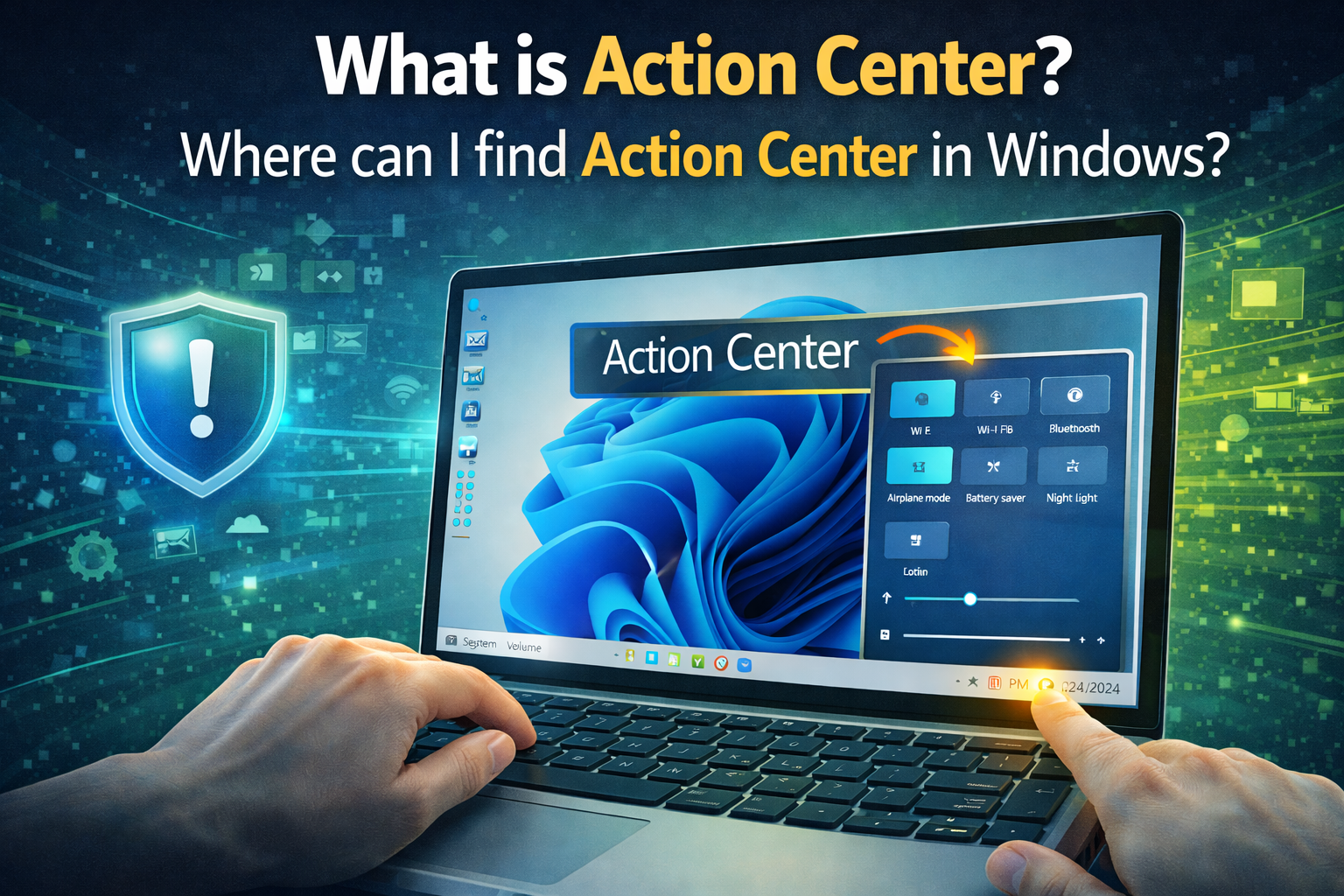
What Is Action Center? Where Can I Find Action Center in Windows? — Complete Guide
If you use a Windows computer daily, you’ve probably seen small pop-ups in the corner of the screen about updates, security alerts, emails, Bluetooth pairing, or Wi-Fi connections. All these notifications — along with several shortcuts to essential system settings — live in one place known as the Action Center.
This article will help you clearly understand:
- What the Action Center actually is
- What it does
- Where you can find it
- How it works in different Windows versions
- Why it is useful
- How to customize or control it
Whether you are a beginner or a daily PC user, this guide will make everything simple and easy to follow.
1. Understanding the Action Center — In Simple Words
The Action Center is a panel in Windows that gathers:
- System alerts
- App notifications
- Security reminders
- Update alerts
- Quick access buttons for settings
Think of it like a control hub + message inbox for your computer.
Instead of messages appearing randomly and disappearing, the Action Center stores them neatly so you can review them whenever you want.
Examples of things you might see here include:
- “A Windows update is available”
- “Your antivirus is active”
- “Wi-Fi connected successfully”
- “Battery low — plug in your charger”
- “Bluetooth device connected”
- “New email received”
So, instead of searching different menus, the Action Center keeps you informed and helps you act quickly.
2. Action Center in Windows 10 vs Windows 11 — Important Difference
Microsoft changed how the Action Center works in Windows 11, so it behaves differently depending on your version.
Let’s look at both.
Action Center in Windows 10
In Windows 10, the Action Center combines:
- Notifications
- Quick Actions (shortcuts)
- System controls
This is the classic version most people recognize.
You can:
- Read messages
- Clear alerts
- Turn Wi-Fi on/off
- Adjust brightness
- Switch airplane mode
- Connect Bluetooth devices
- Enable Focus Assist
- Open settings quickly
Everything appears in one single right-side panel.
Action Center in Windows 11
In Windows 11, Microsoft redesigned it and split features into two parts:
Notification Center — for alerts
Quick Settings Panel — for controls like Wi-Fi, sound, brightness
So while the idea remains the same, the layout is different. You still have easy access — just arranged more simply.
We’ll explain how to open both shortly.
3. Where to Find the Action Center in Windows 10
Finding it is very easy.
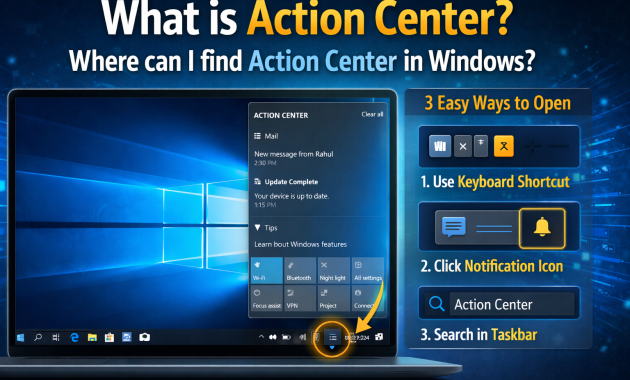
Method 1 — Click the Action Center icon
Look at the bottom-right corner of your taskbar (system tray).
You’ll see a small speech-bubble or notification-style icon.
Click it → and the Action Center opens on the right side of the screen.
Method 2 — Use the Keyboard Shortcut
Press:
Windows Key + A
This instantly opens the Action Center panel.
This shortcut works even faster than clicking.
Method 3 — Touchscreen Swipe (Tablets / Touch Laptops)
If you use a touch device:
Swipe inward from the right edge → Action Center appears.
Very useful for Surface devices and touch-enabled notebooks.
4. Where to Find Notifications and Quick Settings in Windows 11
Since Windows 11 separates notifications and quick controls, here’s how to access them.
Open Notification Center in Windows 11
Click on the date and time area on the taskbar (bottom right).
This opens your notification list and calendar popup.
Here you can:
- View and manage app alerts
- Clear all alerts
- Schedule Focus Assist
- See reminders
Open Quick Settings in Windows 11
Click on the Wi-Fi / Sound / Battery icons cluster on the taskbar.
This opens a small floating panel that contains:
- Wi-Fi toggle
- Bluetooth toggle
- Brightness slider
- Volume slider
- Focus Assist
- Accessibility controls
- Airplane mode
And yes — Windows + A also opens Quick Settings in Windows 11.
5. What Can You Do Inside the Action Center?
The Action Center is not just a notification board. It is designed to save time and reduce clicks.
Here are the main things you can do:
A. View and Manage Notifications
You can:
- Read alert messages
- Dismiss individual notifications
- Clear all messages
- Expand grouped alerts
- Reply or take action directly (for some apps)
For example:
Email apps allow quick replies
Security software provides alerts
Cloud storage shows sync messages
So you stay in control without opening multiple apps.
B. Use Quick Settings & Controls
The lower portion (in Windows 10) or Quick Settings Panel (in Windows 11) gives instant switches for:
- Wi-Fi
- Bluetooth
- Battery saver
- Airplane mode
- Night light
- Focus Assist
- Mobile hotspot
- Screen projection
- Location
Instead of opening the main Settings app, you handle everyday tasks right here.
C. Focus Assist — Reduce Distractions
This feature helps during:
- Meetings
- Online classes
- Gaming
- Video calls
- Work sessions
It allows you to mute notifications temporarily so you can focus without pop-ups.
You can allow:
- Alarms only
- Priority notifications
- No alerts at all
Useful when you don’t want to be disturbed.
6. Why the Action Center Is Useful — Real-Life Benefits
Many users ignore the Action Center until they realize how powerful it is. Here’s why it matters.
1. Centralized Control
Everything related to alerts and quick switches is in one place — simple, organized and accessible.
2. Saves Time
Rather than navigating long menus, you access essential settings instantly.
3. Improves Productivity
You stay informed:
- System health
- Battery warnings
- Software updates
- App notifications
- Sync status
No more missing important alerts.
4. Cleaner Desktop Experience
Instead of pop-ups filling the screen, notifications sit quietly in the Action Center until you check them.
5. Customizable to Match Your Needs
You can choose what appears — meaning less clutter and more relevance.
7. A complete guide to customizing the Action Center in Windows 10
Windows lets you tailor the Action Center to your liking.
Go to:
Settings → System → Notifications & Actions
Here you can:
- Enable or disable specific app notifications
- Choose which quick actions appear
- Reorder the buttons
- Turn notification banners on/off
- Hide notifications on lock screen
This way only important messages reach you.
8. Customizing Notifications in Windows 11
In Windows 11:
Go to:
Settings → System → Notifications
You can:
- Turn notifications on/off
- Choose which apps can show alerts
- Control sound effects
- Enable priority mode
This helps reduce digital noise.
9. Keyboard Shortcuts You Should Remember
Here are the most helpful shortcuts:
Windows + A
Opens Action Center / Quick Settings
Windows + N (Windows 11)
Opens Notification Center
Windows + I
Opens main Settings
Shortcuts make navigation faster and smoother.
10. Action Center and Security Features
The Action Center often works alongside security alerts such as:
- Firewall status
- Antivirus activity
- Microsoft Defender messages
- Privacy warnings
- Update reminders
This means your PC proactively informs you about potential risks — helping keep your system safe.
11. What If Action Center Is Missing or Not Opening?
Sometimes users report that the Action Center:
- Does not open
- Icon disappears
- Stops responding
Here are quick fixes:
Restart File Explorer
- Press Ctrl + Shift + Esc
- Open Task Manager
- Find Windows Explorer
- Click Restart
Enable It Again
Go to:
Settings → Personalization → Taskbar → Turn system icons on/off → Enable Action Center
Update Windows
Outdated builds sometimes cause glitches.
Scan for System Corruption
Run in Command Prompt (Admin):
sfc /scannow12. Action Center vs Control Panel vs Settings — What’s the Difference?
Many beginners confuse them, so here’s a simple breakdown:
| Feature | Purpose |
| Action Center | Notifications + quick controls |
| Settings App | Main system configuration |
| Control Panel | Legacy system management (older tool still present) |
Action Center = fast access
Settings = deeper configuration
Control Panel = older administration interface
13. Best Practices for Using Action Center Effectively
Below are a few recommendations to help you use it more effectively.
- Clear unneeded alerts regularly
- Enable only important notifications
- Rearrange quick settings buttons
- Use Focus Assist during work
- Check security alerts promptly
This keeps your workflow smooth and distraction-free.
14. Who Benefits Most from the Action Center?
Almost everyone — but especially:
- Students — online classes, reminders, alerts
- Office workers — emails, security updates, Teams notifications
- Technical teams and IT engineers can easily monitor system events and network warnings.
- Business users — calendar & communication integration
- Gamers — quick switch to Focus Assist
- Hybrid & remote workers — seamless multitasking
It’s built to support modern digital life.
15. Summary — Understanding the Action Center in One Go
Here’s the concept in simple form:
Action Center (Windows 10)
→ Panel for notifications + quick controls
→ Opens with Windows + A
Windows 11
→ Notifications open via date/time click or Windows + N
→ Quick Settings open via Wi-Fi / Volume / Battery icons or Windows + A
It is a central place to manage alerts and toggle important system features instantly.
Final Thoughts
The Action Center — or its evolved form in Windows 11 — is one of the most convenient parts of the operating system. It keeps your notifications organized, gives instant access to key system controls, and helps maintain focus and productivity.
Instead of chasing alerts across multiple apps or menus, everything you need stays neatly grouped and ready whenever you are.
Once you begin using it intentionally — especially with keyboard shortcuts and customization — you’ll realize how much smoother and faster your Windows experience becomes.