
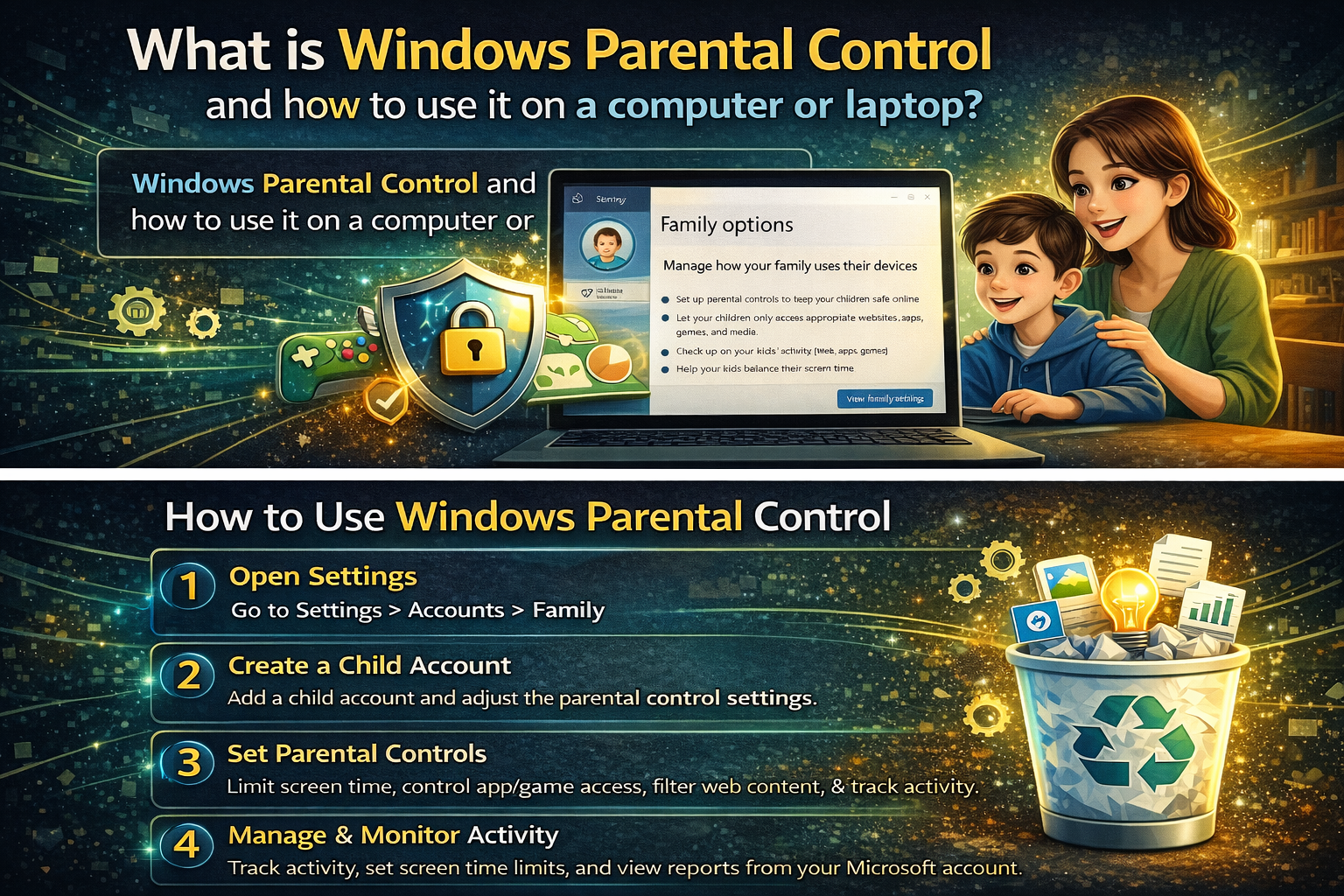
What Is Windows Parental Control and How to Use It on a Computer or Laptop? — Complete Guide
Technology has become a major part of everyday life — for children as much as adults. Kids study online, watch videos, play games, use social-media platforms, and explore the internet for entertainment and learning. While this digital world offers opportunity, it also introduces risk. Unrestricted access may expose children to harmful content, distractions, cyberbullying, scams, or addictive screen-time habits.
To help parents guide and supervise their children’s computer usage, Microsoft includes a powerful feature known as Windows Parental Control. This tool allows parents or guardians to manage what kids can do on a Windows device — without needing advanced technical knowledge.
This guide explains what Windows Parental Control is, what it can do, how it works, and how to set it up step-by-step on a computer or laptop. By the end, you’ll clearly understand how to use it to keep your child safer online while also encouraging responsible digital behaviour.
1. What Is Windows Parental Control? (Simple Explanation)
Windows Parental Control is a built-in set of tools that lets parents:
- Monitor a child’s computer usage
- Restrict screen time
- Control which websites can be opened
- Approve or block apps and games
- Track online activity
- Filter inappropriate content
- Manage purchases in the Microsoft Store
It works through Microsoft Family Safety, which connects the child’s account to an adult’s account for supervision.
So, in simple words:
Windows Parental Control helps parents guide how their children use a computer or laptop — making the online experience safer and more balanced.
It doesn’t stop kids from using technology — it simply helps create healthy rules.
2. Why Are Parental Controls Important?
Children today grow up surrounded by technology. Without supervision, they may encounter:
- Adult or violent content
- Online predators
- Scam websites
- Illegal downloads
- Gaming addiction
- Cyberbullying
- Unwanted purchases
- Distraction from studies
Parental Control helps by:
- Teaching responsible internet use
- Reducing exposure to harmful content
- Preventing excessive screen time
- Helping parents stay informed
- Balancing entertainment & learning
It acts like a digital seat-belt — invisible, but protective.
3. What Features Does Windows Parental Control Include?
Windows provides a wide range of controls. Let’s look at them one by one.
A. Screen Time Limits
You can choose:
- How many hours per day your child can use the device
- What time of day the laptop is allowed to be used
- Different schedules for weekdays and weekends
When the time runs out, the system automatically locks the device.
This prevents late-night usage or all-day gaming.
B. App & Game Restrictions
Parents can:
- Block specific games or apps
- Allow apps only after adult approval
- Set age-based restrictions
For example, you can allow educational tools but block mature-rated games.
C. Web & Search Filtering
This feature allows parents to:
- Block adult websites
- Prevent harmful search results
- Allow only approved websites
- Stop downloads from unsafe pages
It works best in Microsoft Edge, but protections also extend across the system.
D. Activity Reporting
You can receive weekly email summaries showing:
- Websites visited
- Search terms
- Games and apps used
- Screen time duration
This helps parents stay aware of digital habits.
E. Location Sharing (For Linked Microsoft Devices)
If your child signs in on a Windows or Xbox device using the same account, you may also manage location sharing through Family Safety on supported devices.
F. Spending & Purchase Control
Parents can:
- Approve store purchases
- Block spending entirely
- Add money to a child’s Microsoft account safely
This prevents accidental payments.
4. What You Need Before Setting Up Parental Controls
To use Windows Parental Control, you need:
- A Microsoft account for the parent
- A Microsoft account for the child
- Internet access
- A Windows 10 or Windows 11 device
Creating accounts is free.
5. How to Set Up Windows Parental Control (Step-by-Step)
Follow these instructions carefully.
Step 1 — Open Microsoft Family Settings
There are two common ways:
Method A — Through Windows Settings
- Open Settings
- Go to Accounts
- Click Family & other users
- Select Add a family member
Method B — Through the Family Safety Website
Open: family.microsoft.com
and sign in.
Step 2 — Add Your Child’s Account
Choose:
“Add a child”
Enter the child’s Microsoft email address
Or create a new account if they don’t have one
Invite them to join your family group.
Step 3 — Confirm the Invitation
The child signs in and accepts the invitation.
Now your accounts are linked.
Step 4 — Open Family Safety Controls
Inside the Family Safety dashboard you can manage:
- Screen time
- Web filtering
- App and game usage
- Spending
- Activity reporting
You can update settings anytime.
6. Managing Screen Time — How It Works
Inside Screen Time, you can choose:
- Daily limits
- Allowed hours
- Separate schedules
Examples:
- Weekdays — 2 hours per day
- Weekends — 3 hours per day
- No night-time access after 9 PM
When time ends, the screen locks automatically (unless you grant extra time).
This encourages healthy digital habits.
7. Controlling Apps and Games
Inside Apps & Games Restrictions, you can:
- Block apps
- Set maturity ratings
- Require approval before installing
- Review past usage
So if your child tries installing an age-inappropriate game, you receive a notification — and you decide whether to approve or reject.
8. Web Filtering and Safe Browsing
Inside Content Filters, parents can:
- Block adult or violent websites
- Allow only curated websites
- Prevent downloads from risky sites
- Filter search results
If a blocked page is opened, the system prevents access.
This ensures a safer browsing environment.
9. Activity Monitoring — Stay Informed
Weekly reports include:
- Browsing history
- Apps used
- Screen time chart
- Top visited websites
Parents can review and adjust rules if needed.
10. Using Parental Control on Laptops, Desktops & Multiple Devices
Controls apply to:
- Windows laptops
- Desktop PCs
- Xbox devices
- Microsoft Store access
If your child logs in using the same account on different devices, the same rules follow them.
11. Advantages of Using Windows Parental Control
Here’s why many families use it:
- Built-in and free
- Easy to set up
- Works across Microsoft services
- Helps protect kids
- Encourages balance
- Gives parents peace of mind
Technology becomes a guided learning tool, not a risk.
12. Limitations You Should Know
No parental-control system is perfect. For example:
- Kids might bypass restrictions through unofficial apps or borrowed devices
- Works best in Microsoft Edge (other browsers may behave differently)
- Requires internet access to sync
- Not a replacement for real-world guidance
So parental conversation + rules + supervision = best results.
13. Safety Tips for Parents Using Parental Controls
To maximise effectiveness:
- Talk openly with your child about online safety
- Explain why limits are necessary
- Review settings regularly
- Encourage learning & creativity
- Balance screen time with offline activities
- Teach children to report suspicious behaviour
Digital awareness is as important as technical tools.
14. Frequently Asked Questions
Do I need to pay for Windows Parental Control?
No — basic controls are free.
Can I control screen time remotely?
Yes — from the Family Safety website or mobile app.
Do Parental Controls stop cyberbullying?
They reduce exposure, but communication remains vital.
What if my child forgets their password?
You can reset it using the family account.
Can teenagers bypass controls?
Sometimes — which is why trust & discussion matter too.
15. Real-Life Examples of How Parents Use Parental Controls
Example 1 — Study-Focused Use
A student is allowed computer access during homework hours, but gaming apps are blocked on school days.
Example 2 — Younger Child Protection
Parents enable website filtering to block adult content, scams and dangerous links.
Example 3 — Screen-Time Balance
Weekdays allow shorter device usage while weekends permit extra time — encouraging discipline without removing enjoyment.
16. Windows Parental Control vs Third-Party Tools
Some families prefer built-in tools. Others choose additional software.
Windows Parental Control is ideal because it is:
- Integrated
- Private
- Stable
- Easy to manage
But advanced monitoring tools may offer deeper reporting if needed.
17. The Goal Isn’t Control — It’s Guidance
Good parenting does not mean blocking everything.
It means teaching children how to use technology wisely.
Windows Parental Control simply supports that goal by:
- Setting boundaries
- Preventing accidental exposure
- Encouraging responsibility
Children learn self-discipline over time.
18. Summary — Understanding Windows Parental Control in One Line
Windows Parental Control is a built-in tool that lets parents supervise, guide, and manage how children use a Windows computer or laptop — helping create a safer and more balanced digital environment.