
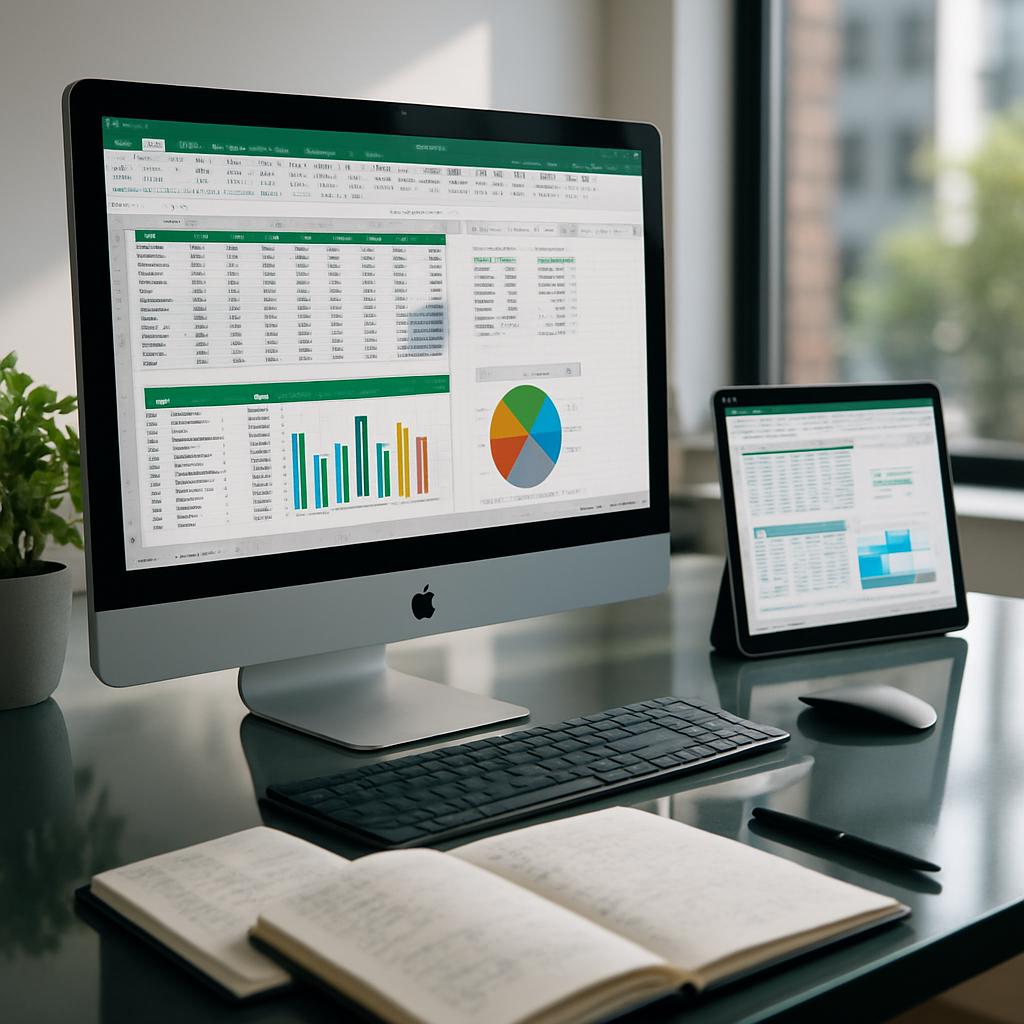
Microsoft Excel remains the backbone of data organization for individuals and teams alike. Whether you work on a spreadsheet for budgets, inventories, or project tracking, Excel helps you turn raw numbers into meaningful insights. In this guide, you’ll discover how to use Microsoft Excel across desktop, online, and Mac platforms, with practical steps, tips, and resources to accelerate your learning and productivity.
Excel Online, Desktop, and Mac: Understanding the Differences
Understanding the differences helps you choose the right tool for the task. Desktop Excel offers full features and performance for large datasets; Excel Online shines for collaboration and accessibility from any device; Excel for Mac adapts to the unique Mac interface while staying compatible with Windows workbooks. Across all platforms, file formats remain the same Excel workbook (.xlsx) with minor interface variations.
Desktop vs Online vs Mac: Practical Takeaways
For routine data entry and heavy calculations, the desktop version is often faster and more capable, especially with large workbooks and add-ins. For teams that need real-time collaboration, Excel Online delivers immediate sharing and co-authoring, plus cloud storage with OneDrive or SharePoint. If you primarily work on a Mac, Excel for Mac provides a familiar feel while maintaining compatibility with Windows-created files.
Getting Started: Excel for Beginners
Starting with the basics builds confidence quickly. Open a new workbook, give your sheet a clear title, and enter a few numbers to experiment with simple arithmetic like addition, subtraction, and averages. As you explore, you’ll notice the Ribbon interface, formula bar, and the quick-access toolbar becoming intuitive with practice.
Your First Workbook: Simple Formulas
Try a small project such as a personal budget or shopping list with a total at the bottom. Create a few rows for items, quantities, and prices, then use formulas like =SUM(B2:B10) to calculate totals. This exercise introduces the idea of relative references and how Excel updates results when you add or remove rows.
Core Features: Spreadsheets, Tables, and Styles
Spreadsheets are the core building block, but you can turn them into structured tables that automatically expand as you add data. Tables improve readability, provide filtering, and enable structured references in formulas. Applying styles, themes, and cell formats helps keep data consistent and visually appealing.
Working with Tables and Named Ranges
Convert a data block into a table to enable built-in filtering, sorting, and convenient totals. Named ranges make formulas more readable and less error-prone, especially in larger workbooks. For ongoing projects, tables and named ranges act like logical anchors for your data.
Formulas, Functions, and Basic Analytics
Formulas perform calculations, while functions provide ready-made logic for common tasks. Start with simple arithmetic, then move to functions like SUM, AVERAGE, MIN, and MAX. As you grow more comfortable, explore conditional logic with IF, plus date and text functions that automate routine checks.
Common Functions to Learn First
Focus on SUM, AVERAGE, COUNT, COUNTA, and IF statements to handle everyday data. For date handling, learn TODAY() and NETWORKDAYS() to calculate workdays between dates. These functions create powerful building blocks for more complex data models.
Data Visualization and Reporting
Excel’s charts turn numbers into visuals that communicate trends quickly. Start with a column or line chart to represent monthly totals, then add a secondary axis or a secondary data series if needed. Conditional formatting highlights key values at a glance, such as budgets that are over target or sales that exceed a threshold.
Charts, Conditional Formatting, PivotTables
Charts should reflect the story you want to tell; avoid overcrowding with too many series. Conditional formatting uses color scales, data bars, or icons to draw attention to important data points. PivotTables summarize large datasets efficiently and let you slice data by rows, columns, and filters.
Automation and Productivity Tricks
Small automations save time. Create reusable templates, use named ranges in formulas, and take advantage of built-in data validation to reduce entry errors. Power features like Mail Merge with Word and simple macros can streamline repetitive tasks, especially when dealing with standard reporting.
Mail Merge, Templates, and Quick Steps
Mail Merge lets you generate personalized letters or emails from Excel data, which is ideal for newsletters or invoices. Templates give you ready-made structures for recurring projects, so you can start a new workbook in seconds rather than from scratch. Quick Steps in Excel streamline common operations like formatting or exporting to PDF.
Cross-Platform Tips: Mac, Windows, iPad and Excel 365
When you switch between devices, synchronization and consistency matter. Save workbooks in OneDrive or SharePoint to access the same file across Windows, Mac, and iPad. Excel 365 updates frequently, bringing new functions and cloud-powered tools that enhance collaboration and automation.
Excel for Mac Specifics and Keyboard Shortcuts
Mac users should be aware of slight differences in keyboard shortcuts and menu naming, but core functionality remains the same. Learning shortcuts like Command+C, Command+V, and Command+T speeds up data entry and formatting. If you’re transitioning from Windows, consider enabling the Windows-compatible keyboard layout to reduce friction.
Where to Access and Download Excel: From Free Trials to Subscriptions
Microsoft offers multiple access paths, including standalone Excel, part of Microsoft 365, or free online versions. Excel Online provides a capable set of features without installation and integrates with OneDrive for cloud storage. If you need the full desktop experience, a Microsoft 365 subscription unlocks Power Query, Power Pivot, and advanced data tools.
Microsoft 365, Excel Online, Free Viewer
For students or trial users, Microsoft 365 Education and the free Excel Online tier can be an excellent way to get started. You can download the desktop app as part of a subscription, or use the online version for immediate access. A lightweight viewer or mobile app is also useful when you only need to review rather than edit data.
Advanced Pathways: Power BI, Data Modeling, and Dashboards
Excel is not just a calculator—it’s a gateway to more advanced data workflows. Power Query helps you extract, transform, and load data from diverse sources, while Power Pivot models data to support complex analytics. Dashboards combine charts, tables, and slicers to present a narrative to stakeholders.
Getting into Power Query and Power Pivot
Power Query and Power Pivot are included in certain Excel licenses; they require a bit of setup but pay off with reusable data pipelines and robust data models. Start by connecting to a simple data source, performing a clean-up, and loading it into a PivotTable. As you grow more confident, build relationships and create calculated columns to power analytics at scale.
Practice, Resources, and Learning Plan
Practice is the fastest way to progress. Use free practice sheets, tutorial videos, and interactive labs to reinforce what you learn. Combine hands-on exercises with short notes to build mental models that stick and reduce errors in real work.
Free Tutorials and Practice Sheets
Popular resources from reputable sites offer structured exercises, from beginner drills to advanced challenges. Look for worksheets that include step-by-step instructions and answer keys so you can self-assess. Regular practice with diversified datasets builds confidence and fluency in Excel’s ecosystem.
A Simple 7-Day Learning Plan to Build Confidence
A focused plan helps you progress steadily without overwhelm. Begin with the basics, then layer in key functions, charts, and a small automation by day four or five. By the end of the week, you should be comfortable creating a complete, row-powered workbook that can be shared and analyzed.
Day-by-Day Steps
Day 1: Create a basic budget or catalog and enter data. Day 2: Learn essential formulas like SUM and AVERAGE, and practice formatting. Day 3: Build a simple table, apply a theme, and add a simple chart.
Day 4: Introduce IF logic and data validation to improve accuracy. Day 5: Explore filters, slicers, and PivotTables for basic analysis. Day 6: Try a mail merge scenario or a template for recurring reports. Day 7: Review your workbook, document your steps, and plan your next project.