
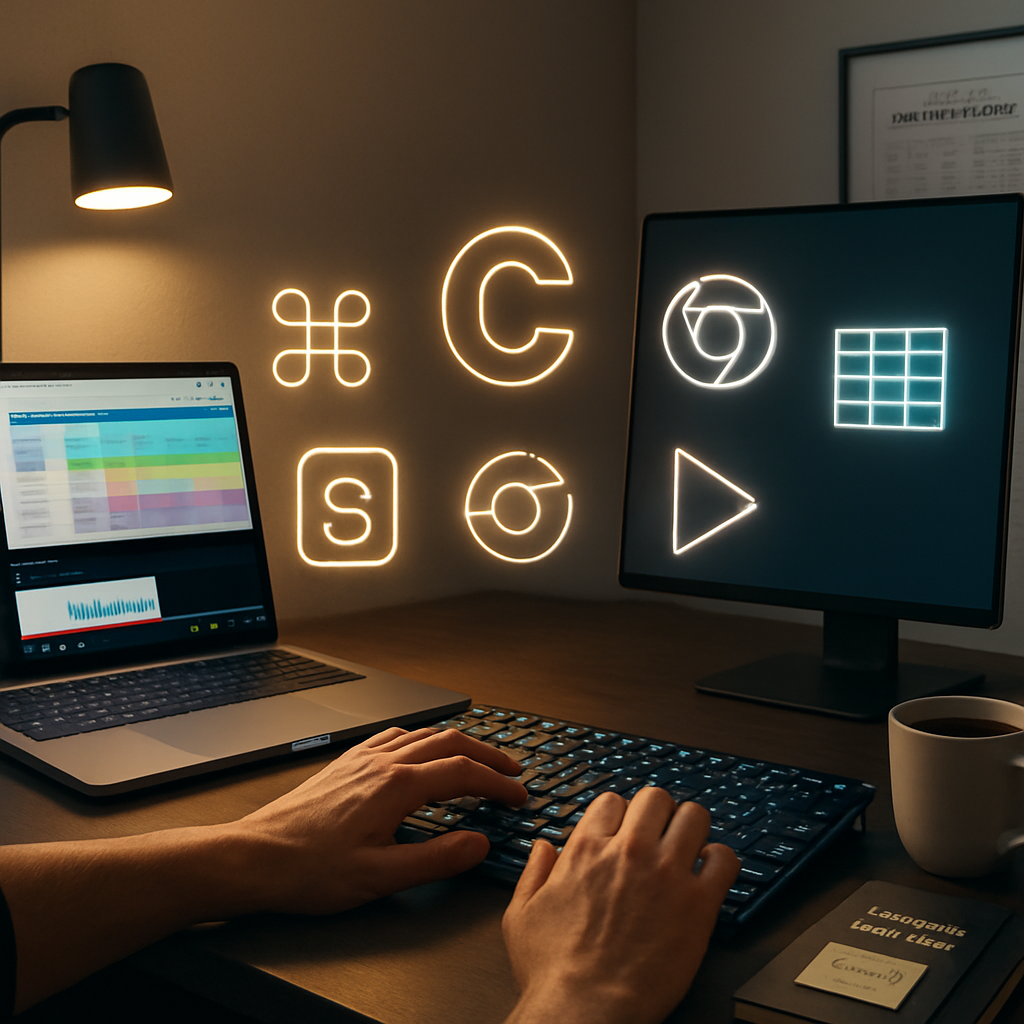
Keyboard shortcuts are the fastest way to tame your digital workspace. In 2026, mastering keyboard shortcuts across Mac, Windows, and major apps like Excel, YouTube, Chrome, and creative tools can shave minutes off your day. This guide helps you pick up the essentials quickly and build a personal shortcut toolkit. Whether you work on a Mac, a PC, a Chromebook, or an iPad, the right keystrokes unlock speed, reduce repetitive strain, and improve accuracy. In the sections to come, you’ll discover practical shortcuts, category-by-category tips, and strategies to customize shortcuts to fit your workflow.
Why Keyboard Shortcuts Matter in 2026
Modern work is a constant cycle of reading, writing, editing, and browsing. Keyboard shortcuts compress those cycles into a few keystrokes, cutting task time while preserving attention. When you rely less on the mouse, you gain focus, consistency, and fewer mistakes. The most effective shortcut users adopt a few core actions and expand their toolkit as needs evolve. In this section, we’ll break down the value into speed, accessibility, and habit formation, with practical examples you can apply today.
First, speed: many everyday actions, from opening a new tab to saving your file and switching applications, become one-liners rather than multi-step mouse rituals. Second, accessibility: keyboard navigation unlocks more options for people who have difficulty with precise pointing devices. Third, habit formation: small shortcuts, repeated across dozens of apps, become reflexive, boosting confidence and reducing cognitive load. By cultivating a repeatable pattern, you can reclaim attention for more creative or strategic work.
Core Keyboard Shortcut Categories
Mac Keyboard Shortcuts Essentials
On macOS, shortcuts capitalize on the Command key (⌘) to streamline nearly every action. For starters, Command-C copies, Command-V pastes, and Command-X cuts. Command-S saves your current document, while Command-P prints. Command-Q closes the active app, and Command-W closes a window or tab. Quick app switching uses Command-Tab, and a capture for screenshots uses Command-Shift-3 or Command-Shift-4 for partial screens. To undo, use Command-Z. For selecting all, Command-A remains universal across most apps. Desktop management benefits from Mission Control with Control-↑ or the App Exposé via Control-Command-↑, depending on your settings. These fundamentals create a reliable base you can build on across word processors, browsers, and design tools. Beyond the basics, you can combine modifiers for powerful actions, such as Command-Option-Esc to force-quit an unresponsive app, or Command-Shift-N to open a new Finder window in some setups. Consider pairing trackpad gestures with keyboard shortcuts to create a fluid, mixed-input workflow that keeps your hands on the keyboard most of the time.
Another practical angle is using Function (Fn) keys for quick actions like brightness, volume, and media playback on MacBooks. If you frequently edit text, learn the navigation shortcuts within the text editor you use—Option-Left/Right to move by word, Option-Delete to delete the word to the left, and Command-Arrow keys to jump to the start or end of a line. Finally, customize a small set of shortcuts for your most-used apps so you can rely on muscle memory across a broad range of tasks.
Windows Keyboard Shortcuts Essentials
In Windows, the Control (Ctrl) key substitutes for many macOS equivalents, with familiar actions such as Ctrl-C to copy, Ctrl-V to paste, and Ctrl-X to cut. Ctrl-S saves, while Ctrl-P prints. Ctrl-Z undoes, and Ctrl-Y repeats it. Alt-Tab switches between open applications, and Windows-Tab opens Task View for virtual desktops. Windows users also rely on the Win (the Windows key) for power-user moves like Win-D to show the desktop, Win-L to lock the device, and Win+L; Win+R to open the Run dialog. For in-text editing, Ctrl-Backspace deletes the previous word, and Ctrl-Arrow keys jump by word segments. You can also use Windows Snap layouts with Win+Left/Right arrows to organize windows quickly. As you expand beyond core tasks, you’ll discover that many apps implement their own shortcut sets that map cleanly to these Windows conventions, creating a consistent experience across your daily workflow.
To streamline system navigation, explore features like Quick Access Toolbar customizations in Office apps and the ability to assign shortcuts to frequently used actions in your favorite productivity tools. A small, deliberate set of Windows-focused shortcuts can dramatically reduce the amount of time spent hunting for commands in menus.
Excel Keyboard Shortcuts You Should Know
Excel shortcuts compress spreadsheet work into a rapid rhythm. Core actions include Ctrl-C and Ctrl-V for copy and paste, and Ctrl-S to save. Ctrl-Z undoes, while Ctrl-Y redoes. To edit a cell directly, press F2, and to fill down, Ctrl-D; for the entire column, Ctrl-Shift-Down Arrow selects data to the bottom. Ctrl-Shift-Right Arrow selects to the end of the data range, and Ctrl-Enter fills the selected range with the current entry. For formatting, Ctrl-B, Ctrl-I, and Ctrl-U toggle bold, italic, and underline. Quick navigation uses Ctrl-Arrow keys to jump between data blocks, and Ctrl-Home or Ctrl-End to reach the sheet edges. When working with larger datasets, consider using Ctrl-Shift-L to toggle filters and Alt-E-S-S to paste special values. For pivot tables, refresh shortcuts and field selection commands save time without leaving the keyboard. The key is to attach a handful of core actions to your fingers so you can focus on analysis rather than sequencing.
Moreover, learn to leverage the Ribbon with Alt-key shortcuts to navigate quickly through menus without the mouse. As you tailor Excel to your needs, create custom macros or use macro-recording to automate repetitive tasks, then bind those macro actions to single keystrokes to keep your workflow tight and productive.
YouTube Keyboard Shortcuts for Faster Viewing and Productivity
YouTube shortcuts across desktops and mobile web players unlock a smoother viewing experience. Press K or Space to play or pause, J and L rewind and fast-forward by 10 seconds, M mutes, and 0 to 9 seek to 0% and 100% in 10% increments. The F key toggles fullscreen, and the C key cycles captions. To adjust the playback speed, the . (period) and , (comma) keys speed up or slow down. When browsing, press / to focus the search box and Esc to exit search. A few apps also support panning with the arrow keys during full-screen playback. These shortcuts keep you in the flow of consuming content without chasing the mouse. For creators, learning shortcuts for captions, transcripts, and video editing timelines can accelerate clip production and review cycles.
Additionally, you can use Ctrl-Shift-N to open a new incognito window in supported browsers when you want to research or gather ideas without affecting your main session. For shorter workflows, set up a personalized playlist of actions (play/pause, speed, captions) to cut down on navigation time during editing or analysis tasks.
Chrome Keyboard Shortcuts for Web Power Users
Chrome shortcuts boost browsing efficiency on any platform. Focus the address bar with Ctrl-L (Windows) or Cmd-L (Mac). Open a new tab with Ctrl-T or Cmd-T, and close the current tab with Ctrl-W or Cmd-W. Reopen the last closed tab with Ctrl-Shift-T or Cmd-Shift-T. Switch between tabs with Ctrl-Shift-Tab or Ctrl-PageUp, and use Ctrl-Tab to move forward through tabs. For bookmarks, Ctrl-D saves the page, and Ctrl-J opens downloads. The omnibox search can be invoked with Ctrl-E or Ctrl-K in many builds, and you can zoom with Ctrl-Plus or Ctrl-Minus on Windows, or Cmd-Plus/Cmd-Minus on Mac. If you’re a power user, you can also access the Developer Tools with Ctrl-Shift-I or Cmd-Option-I, which is invaluable for debugging web apps. Consistent use of these shortcuts helps you stay in flow while researching, coding, or testing ideas online.
Beyond navigation, you can customize shortcuts with extensions or internal settings, enabling quick actions like bookmarking, switching to specific tabs, or launching tools directly from the browser. A steady practice with these keys reduces context switching and accelerates your web-driven tasks.
iPad and Apple Keyboard Shortcuts for Mobile Power Users
When you connect an external keyboard to iPad, macOS-like shortcuts appear, unlocking a lot of productivity on a tablet. Common combos include Command-C to copy, Command-V to paste, Command-S to save, and Command-Tab to switch apps. Command-Shift-3 or Command-Shift-4 can capture screenshots, just as on macOS, while Command-Space triggers Spotlight search on devices configured with this shortcut. Use Option-Delete to delete the word to the left, and Arrow keys for precise cursor movement in text fields. The iPad’s multitasking gestures translate into keyboard equivalents once you pair a keyboard, letting you navigate apps, open new documents, and manage files quickly. For creative work, shortcuts for moving between layers, adjusting tool properties, and scrubbing timelines become a real-time accelerator for your workflow.
Android Keyboard Shortcuts for Cross-Platform Efficiency
Android shortcuts vary by device and app, but general principles apply. In many productivity apps, Ctrl+C, Ctrl+V, and Ctrl+S work when the app supports standard input, while navigating with Alt-Tab-like behavior depends on the launcher. On Chromebooks and Android devices with external keyboards, you’ll find a mix of Windows-like and platform-native combos. For instance, Ctrl-Shift-T often reopens a closed tab in browser apps, and Ctrl-L focuses the address bar in many browsers. Adopting a universal mindset—learn a handful of go-to combos and adapt them across apps—helps you stay in your creative or analytical flow. When in note-taking apps or document editors on mobile, keep a short set of navigation keys (Home, End, Page Up/Down) handy to move through long documents efficiently.
App-Specific Shortcuts: A Practical Starter Kit
Anki Keyboard Shortcuts: Quick Cards, Quick Wins
Anki users benefit from shortcuts that speed deck navigation and review. While key mappings can vary by version, a reliable starting point is learning the next card, reveal back, and deck navigation with core keys in most builds. Start with the basics—advance to the next card, recall the back side, and rate responses with familiar keys. As you grow confident, customize a few keys to fit your study rhythm. A practical approach is to establish a tiny pocket of shortcuts you rely on daily and expand gradually as your reviews accumulate. Pairing these with spaced repetition principles yields faster long-term retention with less cognitive load.
Creative Suites: After Effects, Premiere Pro, and DaVinci Resolve
Video editing and motion design rely on a focused keyboard toolkit. In Adobe After Effects and Premiere Pro, common actions like playback, cut, and rip timelines benefit from the spacebar for play/pause, V or A tools for selection, B for the start of a work area, N for the end, and Ctrl/Cmd+S to save. Black magic happens when you learn time-saving shortcuts for layers, masks, and compositions, plus sequence navigation. In DaVinci Resolve, you’ll rely on keys to switch between Cut, Edit, Color, Fusion, and Fairlight pages, and to manage clips and timelines. The core idea is to start with a small, consistent set and build a personalized palette over time, aligned with your editing style. As you grow, incorporate color-grading shortcuts, node navigation, and audio editing cues to keep the post-production rhythm smooth.
CAD, 3D, and Music Production Shortcuts
AutoCAD, Blender, and Ableton Live each benefit from a structured shortcut approach. In AutoCAD, essential commands like LINE, ARC, and TRIM become quicker with keyboard prompts, while in Blender, navigation (the middle-mouse button or its keyboard equivalent), object mode toggles, and transform tools can be tabbed into muscle memory. Ableton Live users maximize productivity by using Space to play/stop, 0 to toggle device on/off, and a few transport and clip editing shortcuts to keep ideas flowing. Start with universal editing and navigation shortcuts, then map the functions you use most to memorized keys. If you’re unsure about a key, consult the official shortcuts guide for that app and align it with your workflow. Over time, you’ll curate a compact set of workhorse shortcuts that repeatedly show up in your daily projects.
Accents, Symbols, and Special Characters
Typing accents and symbols is a perennial challenge for multilingual work. On macOS, the Accent Menu via Option combinations makes it easier: Option-E followed by a vowel yields accented vowels (á, é, í, ó, ú), while Option-` + letter creates grave accents. On Windows, Alt codes give you many symbols—hold Alt and type a code on the numeric keypad (for example Alt+0225 yields á, Alt+0233 é, Alt+0195 Á, Alt+0176 °). In Chrome or Google Docs, insert special characters through the Insert menu or by using a dedicated symbols palette. For document-heavy work, keep a small reference card of your most-used accented letters and symbols to avoid breaking your typing flow.
In addition to these, many editors support Unicode input, enabling you to type complex characters by code points. Learning a minimal set of entry methods—macOS, Windows, and browser-based options—gives you fast, fluid access to multilingual content without losing momentum.
Troubleshooting Keyboard Shortcuts That Stop Working
Shortcuts can stop working for various reasons: language/keyboard layout changes, conflicting apps, accessibility settings, or driver issues. Start by confirming your active keyboard layout matches your intent (US vs. UK vs. international layouts). Check for app-specific conflicts—some apps reserve keys for their own commands. Update your OS and drivers, and disable conflicting accessibility features such as sticky keys or filter keys if you don’t rely on them. If a universal shortcut ceases to function, try a clean restart or test in an incognito mode-like environment to isolate browser extensions. Finally, verify that the shortcut isn’t bound to a system-level feature that has changed with a recent update. If problems persist, re-create a minimal working set and reintroduce shortcuts one by one to identify the offender.
Custom Shortcuts and Personal Workflow Tweaks
Rather than memorizing hundreds of keystrokes, create a practical, scalable shortcut strategy. Start with a core set of universal actions (copy, paste, undo, save, switch apps) and then create app-specific tweaks for your most-used tools. In macOS, you can customize shortcuts in System Settings > Keyboard > Shortcuts, enabling precise remapping for apps you rely on. In Windows, PowerToys provides powerful remapping and macro capabilities, while individual apps often offer their own shortcut customization. Chrome and some web apps let you bind commands to frequently used actions through browser extensions. Document your shortcut library in a lightweight note, so you can revisit and expand it as your projects evolve. As you refine this library, aim for consistency across tools—when you see a similar action elsewhere, you should instinctively reach for the same keystroke.
Creating a Personal Shortcut Library: A Practical Plan
Begin by drafting a six-week plan to build your shortcut repertoire. Week 1: master essential actions in your primary workspace (copy, paste, undo, save). Week 2: add navigation shortcuts for your browser and file system. Week 3: integrate app-specific shortcuts for your most-used tools—Excel, Chrome, and a content editor. Week 4: learn keyboard shortcuts for media control (play, pause, volume) to speed up media-heavy tasks. Week 5: explore accents and symbols to boost multilingual writing. Week 6: document your favorites and create quick-access reminders or a cheat sheet. The goal is steady expansion with consistent practice in real tasks, not memorization for memorization’s sake. As you progress, rotate new shortcuts into your daily routine and prune unused ones to avoid clutter.
Quick Cheat Sheet: A Lightweight Reference You Can Print
A compact reference helps you apply shortcuts immediately. Keep a one-page sheet near your desk that highlights the core actions: copy, paste, undo, save, switch apps, and a few essential app-specific shortcuts. Use color-coding to differentiate macOS, Windows, and browser shortcuts. The right cheat sheet reduces hesitation and makes it easier to train your hands toward fast, confident keystrokes. Over time, this lightweight guide becomes a second memory, letting you complete tasks with fewer mental steps and more focus. If you want, create a printable version with a tidy grid of actions and the corresponding keystrokes for quick reference during meetings or deep-dive sessions.
Practical Next Steps: Start Integrating Shortcuts Today
To begin today, pick three universal shortcuts you use most and practice them in every app you touch. In the next week, add three more that are critical to your core tools (Excel, browser, and word processor). Use your notes to build a short, personalized set tailored to your workflow, then gradually expand with app-specific keys. If you want extra momentum, assign a monthly “shortcut sprint” where you learn one or two new keys per week and test them in real-work scenarios. As you iterate, your speed and accuracy compound, and you’ll notice less strain and more mental bandwidth for creative or strategic tasks.
Carrying a disciplined, incremental approach to keyboard shortcuts makes your days more productive without turning your routine into a slog. The act of learning becomes a ritual, and your workspace starts to feel less like a maze and more like a well-tuned instrument. With patience and consistent practice, those familiar keystrokes turn into fast, automatic responses that you’ll reach for in moments of need—whether you’re analyzing data in Excel, composing messages in Gmail, or editing a video in Premiere Pro. Start small, stay curious, and let speed become your new default.